
Gears of War: E-Day's PC Graphics Features Go Beyond DLSS
RTX Mega Geometry, upscaling and generated frames solve different problems, with different hardware requirements.

E-Day PC Graphics
Gears of War: E-Day's PC graphics menu deserves more attention than a single DLSS switch. NVIDIA's October 1 technical announcement describes a combination of ray tracing, more detailed geometry and image reconstruction. For PC players, the important question is which part changes the picture and which part changes how that picture reaches the screen.
There is a release distinction, too. As of October 4, NVIDIA describes Premium Edition early access as underway, with the general release scheduled for October 6. Its launch headline should not be read as general availability for every edition.
Geometry That Matches the Visible Scene
According to NVIDIA's E-Day feature breakdown, RTX Mega Geometry improves the detail of geometry used for ray tracing. The practical aim is to make shadows and reflections better match the objects players can actually see, rather than relying on simplified representations.
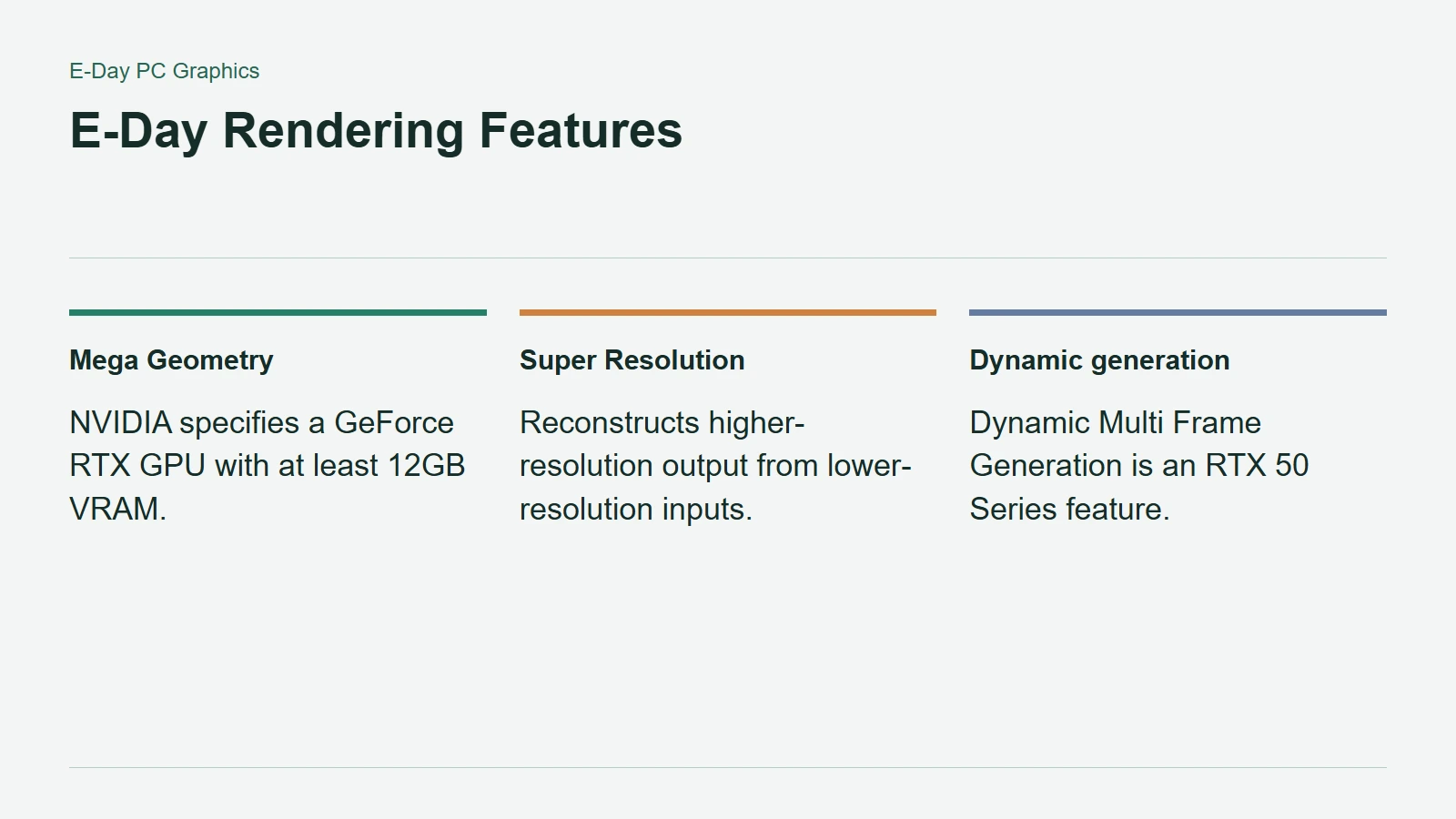
NVIDIA specifies a GeForce RTX GPU with at least 12GB of video memory for this option. That is a requirement for Mega Geometry, not a statement that every graphics feature has the same memory threshold. Treat an unavailable toggle as a compatibility question before assuming a driver installation has failed.
E-Day Rendering Features
Upscaling Is Not Frame Generation
Super Resolution reconstructs a higher-resolution image from lower-resolution inputs. Frame Generation creates additional frames. NVIDIA's general compatibility table lists Super Resolution across RTX 20, 30, 40 and 50 cards, conventional Frame Generation on RTX 40 and 50, and Dynamic Multi Frame Generation on RTX 50.
Those categories explain why two RTX owners can have different choices even when both games display the DLSS name. The shared brand is not a promise of identical functionality. Nor should a displayed frame rate that includes generated frames be treated as the same measurement as frames rendered without generation.
Find a Baseline Before Chasing a Multiplier
A useful setup order is to establish image quality and responsiveness first, then experiment with extra frame generation. Compare the same scene and camera movement, rather than two unrelated moments. Look at fine shadows, moving edges and the feel of aiming alongside the FPS counter.
NVIDIA's published performance figures describe its own test conditions. They are not an independent result for your PC. The better target is a stable combination of detail, responsiveness and smoothness that suits your display, not simply the largest number the menu can produce.